|
-
November 6th, 2010, 01:31 PM
#1
limited or no connectivity
so, here's the backstory. I reinstalled xp on an old laptop and upped the ram a bit and it was running sweetly on my network.
I took it round to the mother in law's who has another laptop that runs well connected to a virgin broadband box.
I connected the old laptop up the virgin box and I'm getting 'limited or no connectivity' and it doesn't connect to the net. It gets stuck on 'acquiring network address' and doesn't go any further than that.
I've done some extensive googling and followed a few people's ideas so far to no avail (eg, IP address is set to auto, ran the xp2 network patch, ran the network wizzard, ran ipconfig /flushdns)
Any ideas?
-
November 6th, 2010, 03:20 PM
#2
Anytime you are connecting a new system/laptop to it,
Power down the modem for a few minutes beforehand.
Cheers.
-
November 6th, 2010, 03:49 PM
#3
It sounds as if the Virgin box is not set up as a DHCP server. If you can find what range the Virgin box is on, setting a static IP on the laptop that is within the same subnet should cure that problem.
Nick.
-
November 7th, 2010, 07:45 AM
#4
 Originally Posted by SuperSparks

It sounds as if the Virgin box is not set up as a DHCP server. If you can find what range the Virgin box is on, setting a static IP on the laptop that is within the same subnet should cure that problem.
Yes, from what I've read that sounds like it. Are there some more detailed instructions somewhere about those steps, we're off the limits of my knowledge here.
-
November 7th, 2010, 09:51 AM
#5
Go to the MiL's laptop, and at the Command Prompt type in "ipconfig /all" without the quotes. Look for the entry "IPv4 Address", and see what IP address it has. Add 10 to the final quad, for example:
Mil's computer = 192.168.1.5
add 10 = 192.168.1.15
That will be within the subnet, and should be far enough so that it won't clash with other peripherals, etc. While there, also take note of the "Default Gateway" and "DNS Server" addresses.
You then need to set that address as static in your laptop. How you get to the settings depends on your version of Windows, but you need to find your way to "Local area connection":
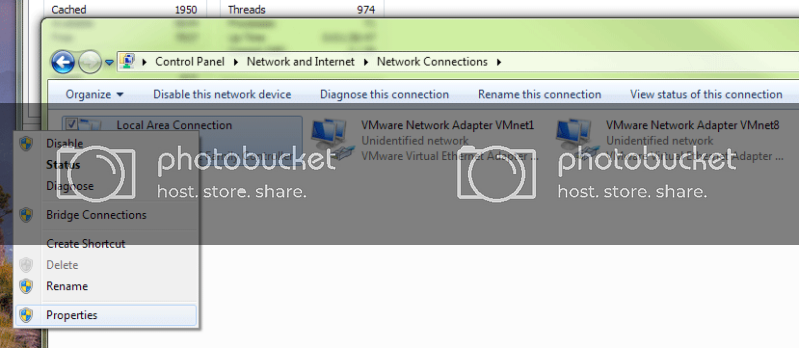
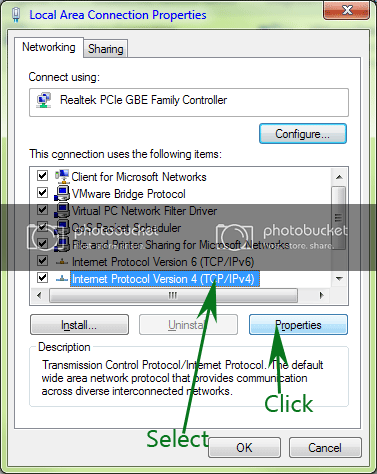
Right-click, select Properties, then select "Internet Protocol version 4" and click the Properties button:
Then add your settings, your calculated new IP address, and the same values for Subnet Mask, Default Gateway and DNS Servers as your Mil's computer has:
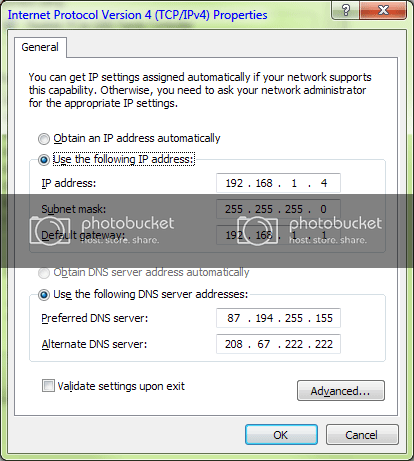
Nick.
-
November 7th, 2010, 10:03 AM
#6
brill thanks I'll try that later this week when I can get round there
-
November 16th, 2010, 04:25 PM
#7
Well, I tried that but all we seem to have done is change the ip address of the laptop that works - and made it not work. I thought the idea was to change the settings in the router?
-
November 17th, 2010, 11:18 AM
#8
Why did you change anything in the working laptop?  You only need to go into the MiL's settings in order to copy the settings for Default gateway, Subnet mask and DNS Servers. You only need to go into the MiL's settings in order to copy the settings for Default gateway, Subnet mask and DNS Servers.
Set the MiL's back to "Obtain an IP address automatically" and it should be OK again.
Then you do what I said above in the non-working computer. You only need to go into the MiL's settings in order to copy the settings
Nick.
-
November 17th, 2010, 04:09 PM
#9
Doh! that was dumb of me. Yes, I set it back to auto last night and it was working. Luckily I wrote down the ip etc because it has windows 7 and it took me ages to find out where they hid Local Area Connection.
I put all the new settings into the old laptop, but its still not connecting. I did it very carefully and I'm sure I did it right.
Thread Information
Users Browsing this Thread
There are currently 1 users browsing this thread. (0 members and 1 guests)
 Posting Permissions
- You may not post new threads
- You may not post replies
- You may not post attachments
- You may not edit your posts
-
Forum Rules
|
|


 Reply With Quote


