|
-
February 18th, 2010, 05:20 PM
#1
 [RESOLVED] Windows 7 XP mode virtual machine [RESOLVED] Windows 7 XP mode virtual machine
I'm using Windows 7 Pro 64 bit and installed the XP virtual machine. I have 8 gig of ram and what does Microsoft recommend that the ram be set to on this? Right now it is at 512MB.
squid13
-
February 18th, 2010, 06:06 PM
#2
As you have plenty of RAM, set the VM memory to 2048MB. That's what I have my XP Mode set to. There's no point in going higher than that with XP, though I usually set a bit more with Vista and Win 7 VMs.
Nick.
-
February 18th, 2010, 06:59 PM
#3
SuperSparks thank you for your response. That's what I'll do.
squid13
-
February 18th, 2010, 10:34 PM
#4
You might try an experiment here. Start up your XPMode VM and, with no programs running, check the RAM usage in both your host OS and your VM OS. This is to get a baseline reading.
Now start up a couple of RAM intensive programs in the XP VM and recheck the RAM usage in both your host and guest OS's.
I don't know how VirtualPC does it but with VMware, the RAM usage goes up in the host OS rather than the guest OS.
My point is that assigning more RAM to the guest is not necessarily what you need when running RAM intensive programs in the guest.
On my system running VMware Workstation, most of my VM's are assigned only 512 MB while my work VM (Win7 or Vista) is assigned 768MB. The only time I assign more than that is during installation of a new VM, At that time I assign 1024MB, then once installed, I cut it back to 512MB.
Basically, I'd recommend some experimentation 'cause I think 2Gigs to a VM is over doing it.
Last edited by DVOM; February 18th, 2010 at 10:36 PM.
-
February 19th, 2010, 11:12 AM
#5
I'm a bit confused by your post there DVOM  Yes, the RAM used by the VM shows in the hots's Task Manager, but the amount is still determined by what you set the VM's memory usage to in either VPC or VMware. So if a guest is set to 512MB, that's all it will ever have available, and will start paging if it needs more. Yes, the RAM used by the VM shows in the hots's Task Manager, but the amount is still determined by what you set the VM's memory usage to in either VPC or VMware. So if a guest is set to 512MB, that's all it will ever have available, and will start paging if it needs more.
If there is one thing that has improved my VMs performance, it is having enough physical RAM to be sable to give the guests plenty to use. The only reason that the defaults are set so low, is that until recently, very few people have had enough physical RAM to be able to let their guest VMs run free.
Nick.
-
February 19th, 2010, 12:28 PM
#6
Sparks, when I talk about VM RAM usage I'm not referring to what you've assigned in Workstation.
For instance, with 2048MB's assigned to a VM, with no RAM intensive programs running your VM uses a small portion of that 2048MB. With a couple of RAM intensive progs running, the actual RAM usage in the VM doesn't go up very much, however the actual RAM usage in the host goes up considerably.
In other words, if you're running a program in the VM that takes 1000MBs of RAM, the lions share of that is used by the host while possibly only 100 extra MBs are used in the VM.
Clear as mud??
-
February 19th, 2010, 12:44 PM
#7
I think you are misunderstanding what's going on. All the memory usage is done in the host, and the memory set for the VM is allocated, in full, in the host when you start the VM (VPC allocates the full amount instantaneously, VMware seems to build up to the set amount as the guest starts). What the virtualisation software won't do is allow the host to use more of it's memory than is set for the particular running guest(s), and if you do not set enough, the the guest will suffer the same lack of memory limitations as if it was running on bare metal (ie excessive paging to disk).
I can't say that I'd ever particularly notices what the gust VMs report memory usage as, but I rarely pay a lot of attention to that kind of thing, as the necessary tricks and dodges needed to allow the VM to be fooled cause it to misreport things like that. I do know that when Task Manager in a guest reports that it is maxed out, one core of the host CPU is actually running at around 25%, at least on my i7 rig, just to show that you can't rely to much on what the guest says it is doing.
Nick.
-
February 19th, 2010, 01:07 PM
#8
Sparks, well now that explains it, on a slightly different note, one problem I had was that VMware would allow my entire 4G of the RAM to be used by the VMs. (Workstation>edit>preferences>memory)
So I had cut that back to about 1.5G, but with your explanation of what's actually going on, I'll increase that and increase the per/VM assigned.
Thanks much
-
February 19th, 2010, 04:09 PM
#9
What you need to do to stop VMware eating all your available RAM is to limit the "Reserved Memory" amount, which by default is set to whatever amount is installed. You'll find the setting in Edit>Preferences:
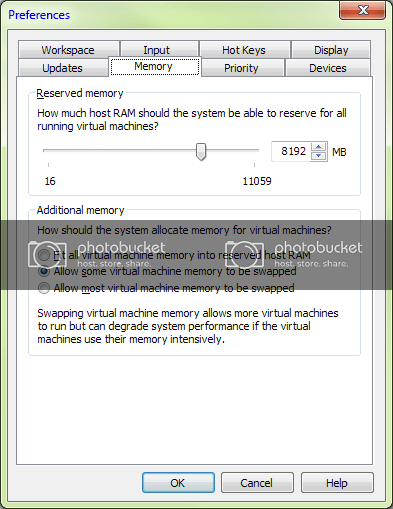
Nick.
-
February 21st, 2010, 09:27 PM
#10
Where do I find that menu when the VM is shut down Nick?
In the VM it says that it must be shut down to make changes.
-
February 22nd, 2010, 11:01 AM
#11
That particular menu, is for the global VMware settings, and is found here:
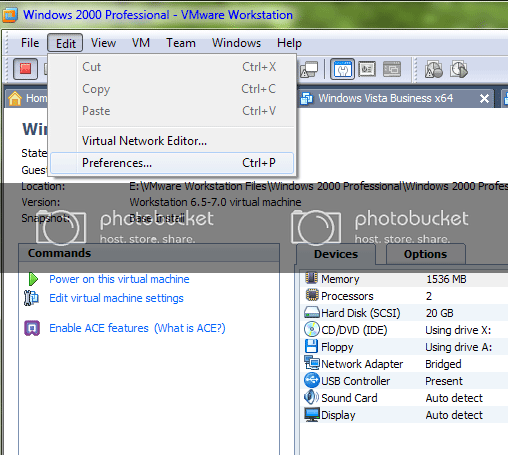
Nick.
-
February 22nd, 2010, 11:03 AM
#12
The individual settings for the VMs themselves, for which you often do need to shut down the machine are here:
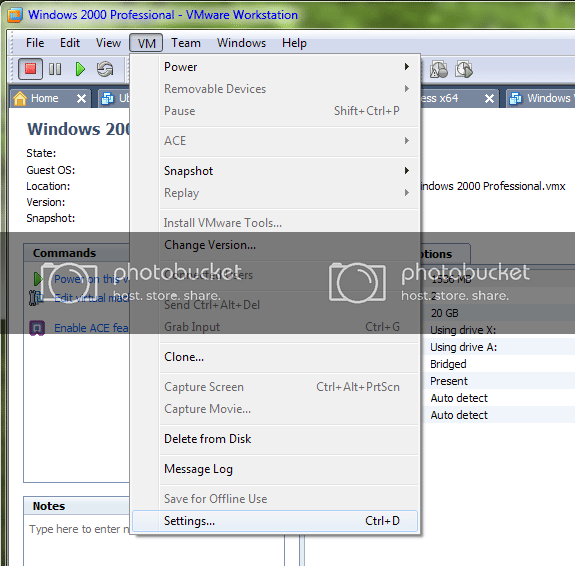
Which should bring up this dialog:
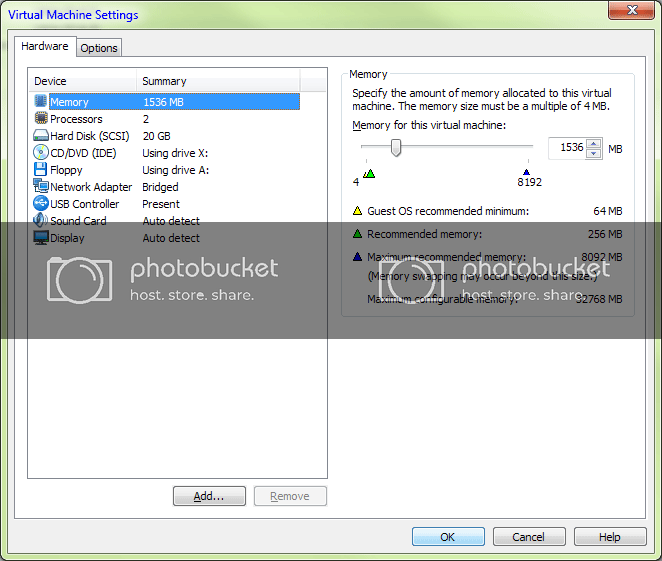
Nick.
-
February 23rd, 2010, 12:25 AM
#13
I cannot seem to find that anywhere. I downloaded the VM from MS on the same page as the XP mode system.
http://www.microsoft.com/windows/vir.../download.aspx
-
February 23rd, 2010, 11:45 AM
#14
Are you using VMware Workstation or XP Mode here Crunchie? The above screenshots are from VMware, but it shouldn't matter where the actual virtual machine came from, those setting dialogs will be the same for all.
Nick.
-
February 23rd, 2010, 04:56 PM
#15
XP mode. I finally tracked it down. Right under my nose in my name folder 
Thread Information
Users Browsing this Thread
There are currently 1 users browsing this thread. (0 members and 1 guests)
 Posting Permissions
- You may not post new threads
- You may not post replies
- You may not post attachments
- You may not edit your posts
-
Forum Rules
|
|


 Reply With Quote


