|
-
January 2nd, 2009, 07:29 PM
#1
 Very strange, computer starting itself. Very strange, computer starting itself.
My husband has a Gateway Windows XP desktop. It is about 3 years old, no problems til last night. We immediately ran anti virus and malware checks and it came up clean. He goes to only a few usual places on the internet.
He turned of his compute to go to bed. We heard a noise like a fan running and that is a sound that this particular computer has always made when it kicks on. He thought it was my computer since he had turned his off.
The first time it sounded as if it turned on then off then on again.
He turned it off again, about 2-5 minutes later we got a repeat of the same thing, it turned on. This continued so we had to unplug the computer.
I am hoping that somehow a setting got messed up, or that this is a simple fix.
The fan that always runs for couple seconds when turned on did sound louder to me but perhaps that was since I was listening to it.
HELP!! ANY ideas, and a fix?
-
January 3rd, 2009, 05:48 AM
#2
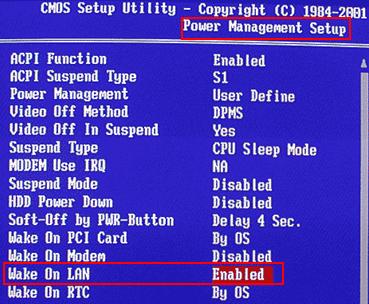
Get into your computer's "CMOS/BIOS Setup" and disable any "Wake On whatever" and/or "Auto On" settings. For example:

-
January 3rd, 2009, 01:19 PM
#3
I need a bit more info
Why would it begin this all of a sudden?
O.K. folks here know I am not too computer savey, so after turning on the computer how do I get to this place?
So do I want it ENABLED? Should I set it according to the pics you show me?
-
January 3rd, 2009, 01:48 PM
#4
 Originally Posted by Msbsgblue

Why would it begin this all of a sudden?
Apparently, up until now, no one was attempting to access your computer via LAN or Modem.
Originally Posted by Msbsgblue
O.K. folks here know I am not too computer savey, so after turning on the computer how do I get to this place?
Support.Gateway.com > Frequently Asked Questions
http://support.gateway.com/s/motherb...614faq42.shtml
Q: How do I enter the BIOS setup utility?
A: When the computer is turned off: Turn on the computer and immediately press either the F1 key or the F2 key at one-second intervals to enter the BIOS setup utility. When the computer is running: Restart the computer. As soon as the computer begins to restart, press either the F1 key or the F2 key at one-second intervals to enter the BIOS setup utility.
Originally Posted by Msbsgblue
So do I want it ENABLED? Should I set it according to the pics you show me?
If you don't want anyone to be able to wake your computer via the LAN (NIC) card, you would Disable "Wake On LAN".
If you don't want anyone to be able to wake your computer via the Modem, you would Disable "Wake On Modem".
Etc., etc.
-
January 3rd, 2009, 02:46 PM
#5
Still a bit confused.
We were on dial up for a long time, we went to DSL about 4 months ago. We are using DSL with a Quest phone company modem, so which should we do?
-
January 3rd, 2009, 02:59 PM
#6
Biostar TA790GX A2+ 6.0
AMD Phenom X4 9750 CPU.
4 Gig DDR2 Memory.
ATI HD 5450 PCIe Video
ATI HD 5450 PCIe Video
500 Watt P.S.
LG W2241T Widescreen 22" LCD
ViewSonic VA721 17" LCD
Envision 17" LCD
2 LG DVD Drives
Floppy Disk Drive
Maxtor 120 Gig Windows 7 Home Premium 32 bit
Gateway NV5378-U Windows 7 Home Premium 64 bit
Acer Aspire V3-731 Windows 7 Home Premium 64 bit
-
January 3rd, 2009, 04:47 PM
#7
Disable anything that looks like the following:
Wake on LAN
Wake on modem ring
PME Event Wake Up
Resume by Alarm
Power on by mouse
Power on by keyboard (your cat or dog could have woken up the PC if these last two are enabled!)
Nick.
-
January 5th, 2009, 10:43 PM
#8
Oh My!
Last night it began turning itself while he was using it.
Went into the Bios and it looks completely different from what you show. He had no cursor so had to hit "enter". Disabled "LAN". Did not see the other things. There are tabs at the top that say various things, the one we went into was "Power".
He just tried to use it again and it shut itself off again. Now what?
WOULD a system restore before all this started help?? This is XP by the way.
Last edited by Msbsgblue; January 5th, 2009 at 11:00 PM.
Reason: add questions?
-
January 5th, 2009, 11:23 PM
#9
Bios, you have to use the arrow keys and the like. Mouse does NOT work there.
And do read the help in there which tells what keys to use.
Open Device manager
R-click the nic and select properties
Select the Advance Tab.
Click the "Wake on ARP/Ping" line
Change the value to disable.
Should take care of the ping wake up.
-
January 5th, 2009, 11:28 PM
#10
SHUTTING OFF NOW BY ITSELF TOO, WHAT THE HECK TO DO ABOUT THAT?
He can't get online to do anything it just shuts off.
WHAT ABOUT, trying a system restore to a couple days ago when it was o.k.?
-
January 5th, 2009, 11:35 PM
#11
Set the power back to where it was and see what happens then.
-
January 5th, 2009, 11:49 PM
#12
Here
Here are the tabs at top MAIN, ADVANCED, SECURITY, POWER, BOOT, EXIT
Not sure we did the right thing first time. What tab do we go into? HE PUT IT BACK and it is now still shutting itself off, as you know before it was also turning itself on.
I will ask again if system restore would work?
-
January 5th, 2009, 11:57 PM
#13
It may fix some of the problems. Give it a whirl. Anyway I would.
May not be in BIOS if the nic is a pci card, but the trick in post #9 should take of the WAKE ON problem.
-
January 6th, 2009, 11:29 AM
#14
This sounds like it could be a power suppy problem  Try testing it. If you have, or can borrow, a multimeter, here's how to test one: Try testing it. If you have, or can borrow, a multimeter, here's how to test one:
Testing PSU Voltages
ATX Power Supplies
Trigger Power Supply for testing
In depth look at the power supply
Or alternatively you can buy a proper PSU tester, they don't cost much:
PSU Tester
ATX12V PSU Tester
Nick.
-
January 6th, 2009, 11:12 PM
#15
I guess nic is suppose to be under the device manager and when we go to his control panel we do not see divice manager. Where else do we find this.
Now what?
Thread Information
Users Browsing this Thread
There are currently 1 users browsing this thread. (0 members and 1 guests)
 Posting Permissions
- You may not post new threads
- You may not post replies
- You may not post attachments
- You may not edit your posts
-
Forum Rules
|
|


 Reply With Quote


