|
-
November 14th, 2009, 10:59 AM
#1
 [RESOLVED] BIOS NOT LOADING [RESOLVED] BIOS NOT LOADING
Hi guys its me again, the computer was running perfectly well since I changed my VGA and PSU. Yesterday after playing Red Faction Guerrilla I switched off my computer and this morning turned on but somehow the computer got power but does not load the bios. The speakers are working and there is no beeps of any kind. I also connected my Corsair PSU onto a PSU Tester and shows as normal. I took the Mobo battery and the jumper out to clear up the CMOS and also tried changing the jumper to clear it up. Both hard drives have been connected to my external case and hooked up on my Laptop and no viruses were found. I also tried to unplug everything from my Mobo and connecting one by one to double check if would work. I tried all sets of connections to the motherboard and even only the power on it would not work. The computer has power because I see VGA light flashing when starts and all fans running with power. My case led lights are on but the hard drive is always off. I have a suspicious could be my Mobo or CPU but before rushing to conclusions I need to know to get a replacement under its warranty. I really appreciate for your help once again. Thanks!!!
-
November 14th, 2009, 11:15 AM
#2
Try installing a new CMOS battery.
Biostar TA790GX A2+ 6.0
AMD Phenom X4 9750 CPU.
4 Gig DDR2 Memory.
ATI HD 5450 PCIe Video
ATI HD 5450 PCIe Video
500 Watt P.S.
LG W2241T Widescreen 22" LCD
ViewSonic VA721 17" LCD
Envision 17" LCD
2 LG DVD Drives
Floppy Disk Drive
Maxtor 120 Gig Windows 7 Home Premium 32 bit
Gateway NV5378-U Windows 7 Home Premium 64 bit
Acer Aspire V3-731 Windows 7 Home Premium 64 bit
-
November 14th, 2009, 03:42 PM
#3
 Originally Posted by dneilson

Try installing a new CMOS battery.
Is it possible that a CMOS battery could have been causing that? It seems such a big deal for something so small like that. I just mean because the BIOS is not even showing up and no beeps whatsoever. 
-
November 14th, 2009, 03:58 PM
#4
Sure is possible. Whether something is small, large or medium has nothing to do with it--if anything is not what it's supposed to be it won't work. If you have a meter measure the voltage--should be 3 Volts.
Biostar TA790GX A2+ 6.0
AMD Phenom X4 9750 CPU.
4 Gig DDR2 Memory.
ATI HD 5450 PCIe Video
ATI HD 5450 PCIe Video
500 Watt P.S.
LG W2241T Widescreen 22" LCD
ViewSonic VA721 17" LCD
Envision 17" LCD
2 LG DVD Drives
Floppy Disk Drive
Maxtor 120 Gig Windows 7 Home Premium 32 bit
Gateway NV5378-U Windows 7 Home Premium 64 bit
Acer Aspire V3-731 Windows 7 Home Premium 64 bit
-
November 15th, 2009, 10:32 AM
#5
Originally Posted by dneilson
Sure is possible. Whether something is small, large or medium has nothing to do with it--if anything is not what it's supposed to be it won't work. If you have a meter measure the voltage--should be 3 Volts.
I am getting the battery in two days and I will keep it posted for any updates. Thanks Mate. 
-
November 15th, 2009, 11:05 AM
#6
OK--there's no guarantee this will fix your problem, but, as it's a possibility and they are so inexpensive it's worth a try. If it doesn't do it at least we can eliminate it from the troubleshooting.
Biostar TA790GX A2+ 6.0
AMD Phenom X4 9750 CPU.
4 Gig DDR2 Memory.
ATI HD 5450 PCIe Video
ATI HD 5450 PCIe Video
500 Watt P.S.
LG W2241T Widescreen 22" LCD
ViewSonic VA721 17" LCD
Envision 17" LCD
2 LG DVD Drives
Floppy Disk Drive
Maxtor 120 Gig Windows 7 Home Premium 32 bit
Gateway NV5378-U Windows 7 Home Premium 64 bit
Acer Aspire V3-731 Windows 7 Home Premium 64 bit
-
November 14th, 2009, 11:29 AM
#7
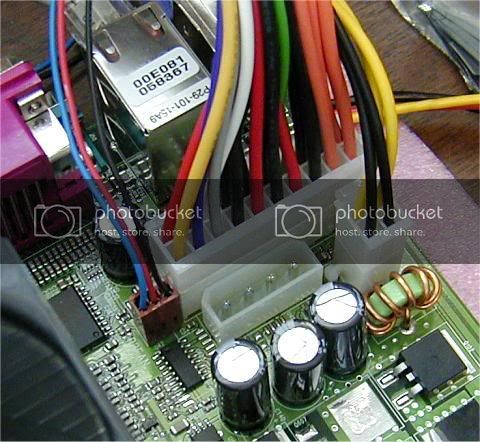
Make sure that the ATX 12volt connector is plugged in, and test it with your tester, as you'll get the symptoms that you describe without that.
Nick.
-
November 17th, 2009, 04:23 PM
#8
I agree, it is very rare for a CPU to fail. Motherboard failure, on the other hand, is distressingly common  Unfortunately there is no way to be 100% certain, but on the balance of probabilities it is far more likely to be the mobo. Unfortunately there is no way to be 100% certain, but on the balance of probabilities it is far more likely to be the mobo.
Nick.
-
November 23rd, 2009, 01:00 AM
#9
Originally Posted by SuperSparks
I agree, it is very rare for a CPU to fail. Motherboard failure, on the other hand, is distressingly common Unfortunately there is no way to be 100% certain, but on the balance of probabilities it is far more likely to be the mobo.
Yeah I agree with u , everything leads to a Mobo failure. I am not a professional technician but I have my leads about that as well. The way it happen I blame on my rubbish MSI Mobo. I have always been an Asus fan boy but somehow I got into MSI (I know they also make good stuff but after this will be a good time until I leave Asus behind again). Anyway thanks, I will keep it posted as soon as my new Mobo, AM3 CPU and Corsair Dominator Memories arrive. Thanks!!!
-
November 18th, 2009, 01:01 AM
#10
Does your Monitor show anything (like a VGA or DVI box or any other writing) moving around the screen? If you see a box like this if your monitor is OK. If you don't see a Box or writing the monitor might be the problem.
Can you hear the Hard Drive spinning? Put your ear up close to the Hard Drive to see if you can hear it spinning (make sure to have the computer turned on) (don't touch the hard drive)!
Is the Fan on Top of the Heatsink spinning? If not make sure it's plugged in to the motherboard s 3 pin connection marked for the heatsink fan. If it's plugged in, try another 3 pin connection on the motherboard!
If these three steps don't help, I'd go to the 15 steps below!
1. Unplugging everything including the Heatsink and CPU
2. Put CPU back into the CPU Socket
3. Apply small thin layer of Thermal Grease to the center of the CPU
4. Put Heatsink on top of the CPU and secure the heatsink (Plug in the heatsink's Fan to the motherboard)
5. Put 1 stick of RAM into the #1 Slot (usually nearest the CPU but check MB Manual for correct slot and also the number of Sticks RAM needed to power the computer) (make sure the tabs click into place holding the RAM in place)
6. Put your Video Card into the PCI-e slot (usually the one nearest the CPU but check the MB Manual to be sure)
7. Plug in any power connections needed for your Video Card (depending on the card it may need up to 2 power connections)
8. Put the Hard Drive back in the correct place inside your computer case, fasten with screws.
9. Plug in the SATA or IDE connection to your hard drive and then to the Motherboard (SATA 1 or IDE Primary)
10. Plug in a power connection to your Hard drive
11. Plug in the PSU's 2 connections to the motherboard (24 pin and 4 pin for newer computers) (1 x 20 pin for older computers)
12. Plug in Case Front Panel Connections to the Motherboard (Power SW, HD LED, Reset SW, Speaker etc...) (your external speakers will not usually beep if the Video Card or RAM isn't working properly so the Case Internal Speaker must be plugged in) (refer to your motherboard manual for connections)
13. Make sure your Case Fans are plugged in
14. Plug in Keyboard/Mouse, Plug in Power to the PSU and Wall, Plug in Monitor to the Video Card (VGA, DVI or HDMI) and Power Connection to the Monitor (then turn it on).
15. Once all of this is completed try starting the computer.
a. If it works Unplug Power then install 1 stick of RAM at a time starting the computer each time to make sure it still works.
b. If it doesn't work Unplug Power and Remove the RAM and replace with another stick. Plug in and restart to see if it worked.
Asus Zenbook Q508UG-212.R7TBL 2-in-1 Laptop
AMD Ryzen 7 5700U Processor
8gb DDR4 RAM (Soldered on Motherboard)
1gb Western Digital Blue NVMe SSD
NVIDA MX450 (DDR6)
15.6" 1920 x 1080 (Full HD) Touchscreen
Intel(R) Dual Band Wireless - AC 7260
USB 1 x 2.0 - USB 1 x 3.0 - USB-C 1 x 3.1
Micro SD Card Reader
Lighted Keyboard
Webcam/Microphone
Windows 11 Professional
MS Office 365 Family
Logitech Anywhere MX Mouse
-
November 23rd, 2009, 12:52 AM
#11
Originally Posted by bugspop1
Does your Monitor show anything (like a VGA or DVI box or any other writing) moving around the screen? If you see a box like this if your monitor is OK. If you don't see a Box or writing the monitor might be the problem.
Can you hear the Hard Drive spinning? Put your ear up close to the Hard Drive to see if you can hear it spinning (make sure to have the computer turned on) (don't touch the hard drive)!
Is the Fan on Top of the Heatsink spinning? If not make sure it's plugged in to the motherboard s 3 pin connection marked for the heatsink fan. If it's plugged in, try another 3 pin connection on the motherboard!
If these three steps don't help, I'd go to the 15 steps below!
1. Unplugging everything including the Heatsink and CPU
2. Put CPU back into the CPU Socket
3. Apply small thin layer of Thermal Grease to the center of the CPU
4. Put Heatsink on top of the CPU and secure the heatsink (Plug in the heatsink's Fan to the motherboard)
5. Put 1 stick of RAM into the #1 Slot (usually nearest the CPU but check MB Manual for correct slot and also the number of Sticks RAM needed to power the computer) (make sure the tabs click into place holding the RAM in place)
6. Put your Video Card into the PCI-e slot (usually the one nearest the CPU but check the MB Manual to be sure)
7. Plug in any power connections needed for your Video Card (depending on the card it may need up to 2 power connections)
8. Put the Hard Drive back in the correct place inside your computer case, fasten with screws.
9. Plug in the SATA or IDE connection to your hard drive and then to the Motherboard (SATA 1 or IDE Primary)
10. Plug in a power connection to your Hard drive
11. Plug in the PSU's 2 connections to the motherboard (24 pin and 4 pin for newer computers) (1 x 20 pin for older computers)
12. Plug in Case Front Panel Connections to the Motherboard (Power SW, HD LED, Reset SW, Speaker etc...) (your external speakers will not usually beep if the Video Card or RAM isn't working properly so the Case Internal Speaker must be plugged in) (refer to your motherboard manual for connections)
13. Make sure your Case Fans are plugged in
14. Plug in Keyboard/Mouse, Plug in Power to the PSU and Wall, Plug in Monitor to the Video Card (VGA, DVI or HDMI) and Power Connection to the Monitor (then turn it on).
15. Once all of this is completed try starting the computer.
a. If it works Unplug Power then install 1 stick of RAM at a time starting the computer each time to make sure it still works.
b. If it doesn't work Unplug Power and Remove the RAM and replace with another stick. Plug in and restart to see if it worked.
Hi there, I have done all the steps you mentioned about and the PC is still not working. There is power on all components, CPU, Fans, HDs, VGA, etc. I have tested different memory sticks, took everything apart and put it back in. New thermal grease, cleaned all fans, basically everything that could have been done, I did. I strongly believe it is a Mobo problem and I am already on the process to get a new Mobo or a refund to buy a new one. Anyway, I promise to keep it posted and as soon as the computer is back running I will notify you guys about. Maybe this incident could help somebody else out there! Thanks mate!!!
-
November 23rd, 2009, 12:00 PM
#12
Have a look at Gigabyte, IMO they are even a little better than Asus.
Nick.
-
November 28th, 2009, 04:44 PM
#13

Hi there, I finally bought myself new components. I got a new AMD 965 Black Edition, DDR3 Corsair's Dominator at 1600 MHz (8 GB) and a new Mobo (Asus m4a785td-v evo) and my computer is up and running fast again. I tested and then sold my old processor (9850) on eBay, the guy who bought it is quite happy about. My memories (8GB OCZ Gold PC6400) have been tested and left on eBay for bidding. My old MSI Mobo has been left on the corner waiting for a RMA request to get a new one or refunded, after triple checking it I've found that is faulty and does not work on any computer. MSI just contacted me that shortly they will process my request and gimme a RMA code to get a new 1.
I just want to leave this message for anyone out there that might face the same problems. As I suspected and everyone else who helped me, it is really a Mobo problem. All the power running but no sign of memories beeping or any chance to load up the BIOS have all being leading to a faulty Mobo. I want to say thanks to everyone and say this is the best forum I have ever been. Well done guys!!!
-
November 28th, 2009, 04:56 PM
#14
You're very welcome. I'm glad you got it all sorted out in the end
Nick.
-
November 28th, 2009, 06:47 PM
#15
I'm glad to hear that it was just the motherboard. A few years back I slipped with a screwdriver and shorted (fried) my Asus motherboard. At the time I was a little low on cash and purchased an MSI Motherboard (Top Of The Line MSI) for a replacement. I have had MSI Video Cards in the past and they have worked without a problem so why not use their motherboards? It ran fine for about a week and then all of the sudden everything stopped working. I tried my daughters CPU and it wouldn't work on the MSI board either (it wouldn't work on her motherboard when I put it back in either, this CPU fried her motherboard once I put it back in her computer). I took the MSI Motherboard back to the place of purchase and they wanted to give me another MSI as a replacement. I refused and they did finally replace it with an Asus. I wish I had asked them the week before how much the Asus was, it was only $3 more than the MSI I had purchased and I could have afforded that! Anyway a long story short, the MSI board fried my CPU & my daughter's CPU & motherboard. It also managed to do something to my Mirrored RAID set and I lost all of my programs & info (the Seagate drives were still ok).
That MSI motherboard cost me 2 CPU's and 1 motherboard and all the time for my data loss. Never again will I use an MSI Motherboard! I'm with you in thinking I'll stick with Asus.
Also a few years back Epox made the hot motherboards for gamers. I built a computer for my brother so he could do some gaming and he insisted on the Epox motherboard. I'm not sure if I should blame his problem on the motherboard or PSU. I wanted him to buy a reliable PSU but he didn't want to replace the PSU that came with his case. Anyway, we had major problems with the computer after a couple days. I finally talked him into purchasing a good PSU, but by then it may have damaged the motherboard or maybe the motherboard was bad from day 1, who knows? My point, I've heard really good things about Gigabyte Motheboards, the same as I had with the Epox Motherboards. Should I stick with a Motherboard I've come to trust or should I try my hand at switching???? I think I'll stick with what works for me! BTW, the Asus Motherboard I fried at the beginning of this post was totally MY FAULT, not the motherboards!
Last edited by bugspop1; November 28th, 2009 at 06:58 PM.
Asus Zenbook Q508UG-212.R7TBL 2-in-1 Laptop
AMD Ryzen 7 5700U Processor
8gb DDR4 RAM (Soldered on Motherboard)
1gb Western Digital Blue NVMe SSD
NVIDA MX450 (DDR6)
15.6" 1920 x 1080 (Full HD) Touchscreen
Intel(R) Dual Band Wireless - AC 7260
USB 1 x 2.0 - USB 1 x 3.0 - USB-C 1 x 3.1
Micro SD Card Reader
Lighted Keyboard
Webcam/Microphone
Windows 11 Professional
MS Office 365 Family
Logitech Anywhere MX Mouse
Thread Information
Users Browsing this Thread
There are currently 1 users browsing this thread. (0 members and 1 guests)
 Posting Permissions
- You may not post new threads
- You may not post replies
- You may not post attachments
- You may not edit your posts
-
Forum Rules
|
|


 Reply With Quote


